AVG AntiVirus & Security
- 4.6
- Rating
- 100.00M
- Installs
- Free
- Price
 Analysis by App-foxy
I approached AVG AntiVirus & Security as a practical phone-maintenance tool rather than something I would open every day for entertainment. Its job is to help protect an Android device from scams and malware, clean up virus-related threats, flag possible account compromises, and add privacy tools such as an app lock and photo vault. That combination makes it more useful than a simple “scan” button, but it also means the first few minutes matter. If the setup is rushed, the app can feel confusing or more intrusive than expected.
My overall impression is that this is a broad security toolkit for people who want several protections gathered in one place. It is free to install, rated for Everyone, and comes from AVG Mobile. The app has reached over 100 million installs and holds a 4.6 average from around 7.9 million ratings, so it is clearly a familiar choice rather than an obscure utility. Still, popularity does not remove the need to understand what each tool actually does, what requires extra attention, and when a problem is probably caused by Android or another app instead.
Where people usually get stuck
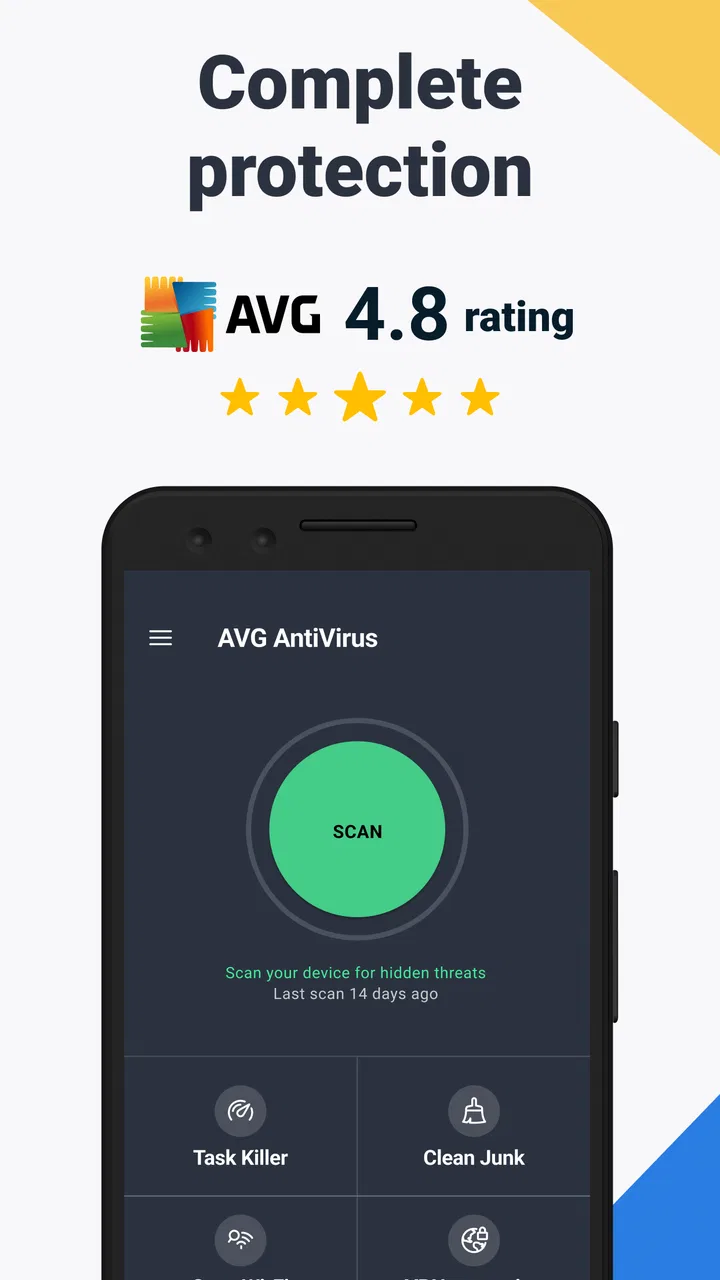
The most common difficulty with a security app is not finding the scan button; it is deciding what to do after the app displays several kinds of advice. AVG AntiVirus & Security brings together malware protection, scam protection, hack alerts, an app locker, and a photo vault. Those features address different risks, so I find it easier to treat them as separate jobs instead of expecting one scan to solve everything.
You May Also Like

 Blood Strike: 2.5 Anniversary
Blood Strike’s Loadouts Turn Every Drop Into a Tactical Gamble
A close look at Blood Strike’s custom loadouts: how fast access to signature weapons reshapes its battle royale rhythm, rewards preparation, and narrows the gap between fights.

 Pandora - Music & Podcasts
Pandora’s Music Is Easy to Start, but Harder to Recover
Pandora’s strength is its low-effort path from a seed to a station. Its weak spot is how much confidence it asks you to place in connection, setup, and quiet recovery.

 8 Ball Pool
 Is Built on Rivalries, Rematches, and Routine
A close look at the rivalries, rematches, shared routines, and unanswered safety questions that turn a quick pool match into a persistent mobile community.

 Samsung Music
’s Quiet Strength Is Playing What You Already Own
Its reach comes less from spectacle than from dependable access to a personal library. That simplicity is both the app’s strongest retention engine and its ceiling.

 AccuWeather: Weather Radar
AccuWeather Review: A Quick, Clear Forecast for Everyday Decisions
For everyday plans, the best forecast is the one you can understand quickly. AccuWeather makes rain timing, radar, and local conditions easy to act on, with a few trade-offs.

 Hill Climb Racing
Why Hill Climb Racing Still Turns Crashes Into One More Run
A tiny car, a bumpy hill and one more upgrade: Hill Climb Racing keeps resurfacing because its simple chaos makes every near-miss feel personal.
More From Our News Desk



A malware check is about suspicious software or files. Scam protection is more relevant when a message, website, or offer tries to manipulate you into handing over information. Hack alerts are useful for awareness after an account or service may have been exposed. The app locker and photo vault are privacy controls: they help limit access to selected content when somebody else is holding your unlocked phone. These tools overlap in the general goal of safety, but they are not interchangeable.
That distinction matters in everyday use. If a browser page keeps opening unwanted tabs, a security scan may be sensible, but clearing the browser’s data or removing a recently installed application may be just as important. If a friend knows your screen PIN, an app locker is not a complete privacy solution. If an account warning appears, changing the affected password and enabling stronger sign-in protection is more important than simply dismissing the notification.
I also noticed that broad security suites can create decision fatigue. A user who only wants occasional malware checks may not need to explore every privacy feature. Conversely, someone who wants a protected photo area should not assume that installing the app automatically secures existing pictures. The useful approach is to open each feature deliberately, read the short explanation, and configure only the protections that match your habits.
Why the first launch deserves attention
On first use, I would avoid tapping through every screen as quickly as possible. Security apps often ask you to review settings, notifications, or access needed for particular tools. The right choice depends on how you use the phone. Someone who frequently installs apps outside the main store has a different risk profile from someone who downloads very little and mainly wants privacy around photos.
The application is free, but it also includes in-app purchases ranging from $0.99 to $119.99 per item. That does not mean every user needs to pay. It does mean I would read each upgrade screen carefully, especially when a feature is presented as part of a wider security recommendation. If you only want the free functions, take a moment to identify which controls are available without subscribing or buying anything before making a decision.
Another small but important point is that the current version is 25.22.0 and the minimum Android requirement is Android 9. A phone running an older system will not be a suitable target for this release. On a compatible device, keeping both Android and the security app updated is more sensible than relying on an old installation indefinitely.
Setup checks that prevent avoidable problems
I recommend starting with a simple baseline: update Android, update AVG AntiVirus & Security, and restart the phone if the device has been running for a long time. This will not fix every issue, but it removes several basic causes of strange behavior. A security tool cannot compensate for an operating system that is badly out of date or a phone that is nearly out of storage.
Next, check the device’s date and time. Incorrect time settings can make websites, account checks, and security warnings behave oddly because certificates and online services depend on accurate clocks. If the phone is using an aggressive battery-saving mode, review whether it is restricting background activity for the app. Battery optimization can be helpful for battery life, but it may also delay notifications or scheduled checks.
Storage is another overlooked factor. A phone with almost no free space can fail to update applications, create temporary scan files, or save items moved into a privacy feature. Before assuming that AVG is malfunctioning, remove obvious clutter such as large videos, unused downloads, or applications you no longer need. I would also avoid running several “cleaner” or security utilities at the same time, because they can compete for resources and produce confusing alerts.
For the app locker and photo vault, choose a method you can reliably remember. A privacy feature is not helpful if its passcode is forgotten or if the phone’s main unlock code is shared casually. I would also test the workflow with a nonessential photo first. Move one picture, lock the feature, close the app, and confirm that you can open it again before transferring a large collection.
That test is more valuable than it sounds. It confirms that you understand where protected content appears, how to return to it, and what happens when the phone is locked or the app is closed. It also prevents the unpleasant situation of moving important files before discovering that the chosen privacy workflow does not suit you.
Make the scan useful instead of ceremonial
Running a scan immediately after installation can provide a useful starting point, but I would not treat a clean result as proof that every security problem is impossible. A scan is one layer of protection. Safe browsing habits, careful handling of messages, and prompt updates still matter. Likewise, a warning does not automatically mean the phone is permanently infected; it means you should inspect the item or behavior before taking action.
When AVG flags something, read the description and consider what changed recently. Did you install an unfamiliar app, open a suspicious attachment, or grant access to a service you do not recognize? Recent changes offer useful context. Removing an item blindly can create new problems if it is a legitimate tool that the phone needs, so I prefer to verify the name and source first.
Scam protection deserves the same careful reading. A convincing message can imitate a bank, delivery company, social network, or workplace. The safest response is usually to avoid using the message’s button and open the official app or type the known website address yourself. A security warning can point out danger, but it cannot replace checking who is asking for information and why.
Recovering a workflow when something goes wrong
Suppose the app seems stuck during a scan or a protection screen does not load. I would begin with the least disruptive actions: check the connection, close and reopen the app, and restart the phone. If the issue continues, confirm that the app and Android are current and that there is enough free storage. These steps are dull, but they solve more everyday problems than repeatedly pressing the same control.
If a feature behaves differently after a system update, review Android’s app settings rather than assuming that the security app has lost your configuration. Look at notifications, battery restrictions, and any relevant access controls. Menu names can vary by phone maker, so I would search the device settings for the app name instead of following instructions written for a different handset.
For a photo vault problem, do not immediately uninstall the application or clear its data. First confirm that you are using the same account or unlock method as during setup, and check whether the phone has enough storage. Clearing data can remove local settings or protected content, depending on how a feature stores information. In a recovery situation, preservation should come before experimentation.
For the app locker, test one protected application after changing any setting. If the lock does not appear, close the protected app completely and try again. Also check whether the phone itself is already applying a manufacturer privacy control. Two systems attempting to secure the same application can make the experience feel inconsistent, even though neither one is necessarily broken.
When an alert concerns a possible account compromise, I would handle it outside the security app as well. Change the password from the official service, avoid reusing that password elsewhere, and review active sessions if the service provides that option. The hack-alert function can be a useful prompt, but account recovery belongs with the affected service. This is one of the most important trade-offs: AVG can help you notice a risk, while the service provider controls the account.
Separate a security problem from a phone problem
Not every slowdown, pop-up, or battery drain is caused by malware. A recently updated social app, a failing battery, poor reception, a full storage drive, or a manufacturer’s background management can produce similar symptoms. I would compare the timing: did the behavior begin after installing one particular application, changing a system setting, or entering an area with weak signal?
Android’s own battery and storage screens are useful companions here. If one ordinary application is consuming unusual resources, investigate that application directly. If every application is slow, the problem may be the phone’s available storage, thermal condition, or age rather than a virus. AVG can be part of the investigation, but it should not be the only source of evidence.
There is also a human factor. Repeated security warnings can make people anxious and lead them to approve actions without reading. I would rather see one clear check followed by a deliberate decision than run multiple scans from several tools and react to every notification. More alerts do not automatically equal more safety.
Everyday uses where the app earns its place
One realistic example is a family member who receives a message claiming that a parcel cannot be delivered unless a small fee is paid. They tap the link, see a familiar-looking page, and become unsure. AVG’s scam-focused protection can add a useful warning layer, but my recommended workflow would be to stop entering details, close the page, and verify the delivery through the courier’s official application or website. The app helps create a pause; the user still makes the final safe choice.
Another example is lending a phone to somebody else. If the device contains private conversations or personal images, the app locker and photo vault can reduce casual access. I would configure them before the phone is handed over, not while another person is waiting. I would also remember that these features protect selected areas, not every piece of information visible through notifications, recent apps, cloud services, or the unlocked system itself.
For people who install many applications, the value is broader. A regular check can encourage a review of unfamiliar software and unused tools. My practical tip is to pair the scan with an uninstall session: remove applications you no longer recognize, then review the permissions and account access of anything you keep. The security app may identify a concern, but reducing the number of installed applications lowers the number of things you need to monitor.
Travel is another situation where the app can be helpful without being a complete travel-security plan. Public networks, urgent messages, and unfamiliar charging or browsing situations can encourage rushed decisions. I would use AVG as one layer, while avoiding sensitive logins from suspicious pages and keeping important accounts protected with unique passwords and stronger sign-in methods.
How it compares with simpler alternatives
Android already includes built-in security features, and many users will find those sufficient for basic protection if they keep the system current and install applications carefully. The main reason to choose AVG is convenience: it places several security and privacy-oriented tools in one recognizable interface. That is attractive for someone who wants guidance rather than separate settings scattered across the phone.
The trade-off is additional complexity. A built-in solution tends to be quieter and more integrated with Android. AVG offers a wider set of visible tools, but you may spend more time reviewing recommendations, notifications, and optional purchases. If your priority is minimum interruption, the system’s own protections may be a better fit. If you want a dedicated app that combines scanning with privacy utilities, AVG is easier to justify.
Dedicated password managers, account-security pages, and manufacturer privacy tools can also be better at their individual jobs. A password manager is the stronger choice for creating and organizing unique credentials. An account provider’s security dashboard is the authoritative place to recover an account. A phone maker’s app-lock function may feel more seamless on its own hardware. AVG’s advantage is breadth, not necessarily depth in every separate category.
I would skip it if you dislike managing another security interface, rarely install anything beyond trusted sources, and already use the phone’s privacy controls comfortably. I would also avoid treating it as a magic shield. No security app can make unsafe links safe, recover a forgotten password automatically, or guarantee that a phone with a damaged battery and no storage will run well.
My practical verdict after using the toolkit
AVG AntiVirus & Security makes the most sense for Android users who want a single place to check for threats and add a few practical privacy barriers. The combination of scam and malware protection, hack alerts, app locking, and a photo vault gives it more everyday range than a basic antivirus-only utility. I especially like the idea of using it as a prompt for better habits: pause at suspicious messages, review unfamiliar applications, and protect private content before lending out the phone.
Its weaknesses are mostly about expectations and friction. The number of tools can overwhelm someone who only wants a quick scan, and optional purchases mean I would pay close attention to what is included before agreeing to anything. Troubleshooting also requires patience: battery restrictions, low storage, Android settings, and other security tools can all look like app failures.
The app is free, suitable for Everyone, and maintained by AVG Mobile, with the current release requiring Android 9 or later. Those details make it accessible to a large range of compatible users, but accessibility should not be confused with necessity. I would install it when I want a guided, multi-purpose security layer and am willing to review its settings. I would choose a simpler built-in approach when quiet operation and minimal management matter more.
My recommendation is cautious but positive: use AVG as a practical assistant, not as a replacement for careful decisions or Android’s own controls. Set up only the features you need, test the app locker or photo vault with nonessential content, keep enough storage available, and treat account alerts as a reason to secure the account directly. Used that way, it can be a useful addition to a phone rather than another source of confusing warnings.
FAQs for AVG AntiVirus & Security
01What features does AVG AntiVirus & Security offer?
AVG AntiVirus & Security provides comprehensive protection with features such as real-time virus scanning, Wi-Fi security analysis, app locking, and anti-theft tools. Additionally, it offers a photo vault to secure personal photos and a performance boost feature to enhance device speed. These features ensure a well-rounded security suite for your device.
02Is AVG AntiVirus & Security free to use?
AVG AntiVirus & Security offers a free version with essential features like virus scanning and basic protection. However, for advanced features such as app locking and an enhanced firewall, users can opt for a paid subscription. The premium version offers a more robust security experience for those seeking additional protection.
03How does AVG AntiVirus & Security impact device performance?
AVG AntiVirus & Security is designed to run efficiently in the background without significantly impacting device performance. The app includes a performance enhancement feature that helps optimize device speed by cleaning up unnecessary files and managing background apps. Users generally find that it balances security and performance well.
04Is AVG AntiVirus & Security easy to use for beginners?
Yes, AVG AntiVirus & Security is user-friendly and designed with a simple interface that is easy to navigate. The app provides clear instructions for setting up and using its features. Beginners will appreciate the intuitive design, making it accessible for users who are not tech-savvy but still want strong security.
05Can AVG AntiVirus & Security protect against phishing attacks?
AVG AntiVirus & Security includes features that help protect against phishing attacks. It scans links in messages and emails to ensure they are safe before you open them. By providing real-time protection and alerts, it helps safeguard your personal information from fraudulent schemes and malicious websites.
Pros
- Comprehensive malware protection.
- Real-time threat detection.
- User-friendly interface.
- Includes VPN for online privacy.
- Performance optimization tools.
Cons
- Contains in-app advertisements.
- Some features require premium.
- VPN has limited data usage.
- Occasional false positives.
- Can drain battery quickly.

AVG AntiVirus & Security
Gallery